

Best Laptops for Video Editing in 2026: Top Picks for Every Budget
Looking for the best laptop for video editing in 2026? We break down the top Mac and Windows options for 4K editing, color grading, and on-location work.
Best Laptops for Video Editing in 2026: A Buyer's Guide That Actually Makes Sense
If you’ve ever tried to edit a 4K timeline on a laptop that wasn’t built for it, you know the pain. The playhead stutters. The export bar crawls along like it’s got somewhere better to be. Your fans sound like a tiny jet engine taking off on your kitchen table. And somewhere around minute forty of waiting for a render, you start Googling “best laptop for video editing” at 11 p.m., which, hey, is probably how you ended up here.
The good news is that 2026 has been a genuinely great year for creator laptops. Whether you’re a wedding videographer cutting footage between shoots, a YouTuber turning out weekly uploads, or a freelance editor juggling client deadlines from a coffee shop, there’s a machine out there that fits how you actually work — not just how a spec sheet looks on paper.
This guide skips the jargon overload and gets straight to what matters: which laptops handle real editing workloads, what they cost, and who each one is actually right for.
What Actually Matters When Editing Video on a Laptop
Before jumping into specific models, it helps to know what you’re shopping for. A lot of laptop marketing throws numbers at you that sound impressive but don’t tell the whole story.
Processor and Graphics Power
Video editing software like Premiere Pro, DaVinci Resolve, and Final Cut Pro leans hard on both the CPU and GPU at the same time. You want a multi-core processor — Apple’s M-series chips, Intel Core Ultra 9, or AMD’s Ryzen AI 9 lineup are all solid bets — paired with either a dedicated NVIDIA GPU or Apple’s unified architecture. The GPU isn’t optional decoration here; it’s doing real work decoding footage, rendering effects, and speeding up exports.
RAM: More Than You Think You Need
Sixteen gigabytes of RAM will technically open most editing software, but it’s the bare minimum for casual 1080p work. The moment you start stacking color grades, adding multiple video layers, or working in 4K, you’ll want 32GB. If you’re cutting 6K or 8K footage regularly, 64GB stops being a luxury and starts being a necessity. One quirk worth knowing: Apple’s unified memory works differently than traditional Windows RAM, so an M-series Mac with 24GB can sometimes outperform a Windows machine with 32GB in real editing scenarios.
Display Quality
This one trips people up. A laptop screen can look gorgeous and still be useless for color grading if it isn’t accurate. Look for displays that cover 100% of the DCI-P3 color space, ideally with factory calibration. OLED panels deliver fantastic contrast for HDR work, though high-quality mini-LED and IPS panels can hold their own for less money.
Storage and Cooling
Raw 4K footage eats storage fast, so aim for at least 1TB of NVMe SSD space — 2TB if your budget allows. And don’t skip thermal performance. A laptop that benchmarks beautifully for thirty seconds but throttles hard during a twenty-minute export will frustrate you every single day.
The Best Laptops for Video Editing Right Now
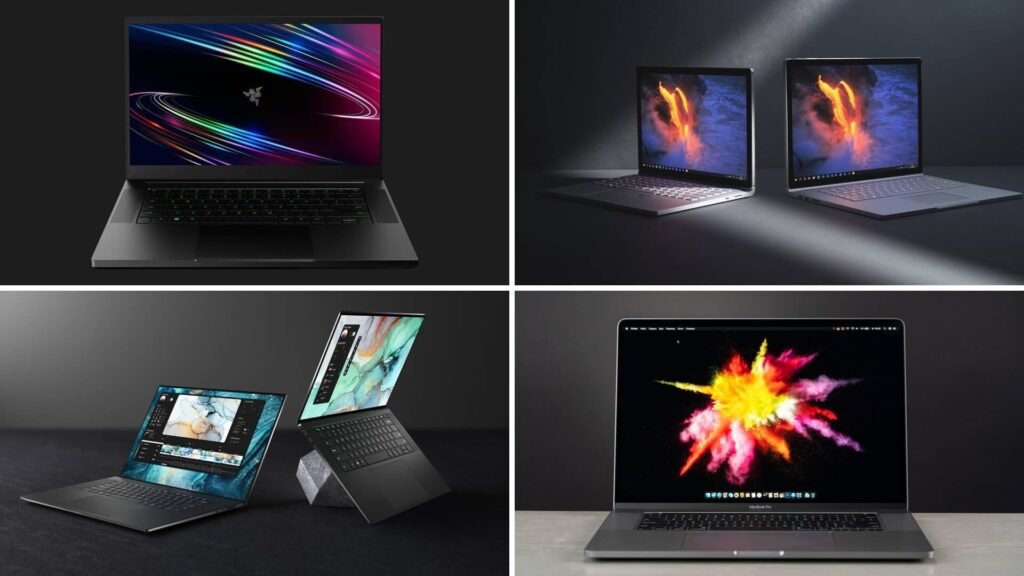
Apple MacBook Pro 14-inch (M5 Pro) — Best Overall
Apple’s 14-inch MacBook Pro continues to be the easiest recommendation for most editors, and the new M5 Pro chip makes that case even stronger. It pairs an efficient, fast chip with a stunning Liquid Retina XDR display that’s factory-calibrated for accurate color work right out of the box.
Pros:
- Excellent battery life — often 18 to 21 hours in real-world use
- Hardware-accelerated ProRes encoding makes exports noticeably faster
- Runs cool and quiet even under sustained editing loads
- Display is reliable enough for grading without an external monitor
Cons:
- Final Cut Pro is the most optimized option; Adobe apps run great but Mac-only workflows can feel limiting if your team is on Windows
- Storage upgrades get expensive fast
- Starting around $1,699, climbing well past $2,500 for higher RAM and chip configurations
Real-world use case: A solo YouTuber editing weekly 4K vlogs in Final Cut Pro will fly through timelines and exports without ever hearing the fans kick on.
Dell XPS 16 9640 — Best Windows Alternative
For editors who need Windows specifically, whether for software compatibility or studio requirements, the Dell XPS 16 hits a strong balance of performance, display quality, and price. It pairs a capable Intel chip with a dedicated NVIDIA GPU, which makes a real difference in Premiere Pro and DaVinci Resolve.
Pros:
- Strong GPU acceleration for effects-heavy timelines
- High-resolution, color-accurate display
- More configuration flexibility than Apple offers
Cons:
- Heavier and bulkier than the MacBook Pro
- Battery life takes a real hit under heavy editing loads
- Can run warm during long render sessions
Real-world use case: A freelance editor working in an agency that standardizes on Adobe Premiere and needs to share project files seamlessly with Windows-based colleagues.
ASUS ProArt Studiobook 16 OLED — Best for Heavy Color Grading
This is a laptop built specifically with creative professionals in mind, and it shows. The 16-inch 4K OLED display is Pantone-validated and covers the full DCI-P3 gamut, making it one of the most trustworthy laptop screens for color work outside of a dedicated reference monitor. Paired with a high-end NVIDIA GPU and up to 64GB of RAM, it handles complex multi-cam timelines without breaking a sweat.
Pros:
- Among the most color-accurate displays available on any laptop
- Serious GPU horsepower for noise reduction, color grading, and AI-assisted effects in Resolve
- Plenty of RAM headroom for demanding projects
Cons:
- Heavier, around 5.4 pounds, so it’s less ideal for travel-heavy schedules
- Premium pricing that puts it firmly in “investment” territory
- Battery life is shorter than ultraportable competitors
Real-world use case: A colorist finishing a short documentary who needs to trust every shade and shadow on screen without second-guessing the display.
MSI Creator 16 AI Studio — Best for Portability with Power
If you want serious specs in a body that won’t wreck your shoulder, the MSI Creator 16 AI Studio is worth a look. It packs an Intel Core Ultra 9 processor and NVIDIA RTX graphics with full ray tracing into a chassis that’s surprisingly slim and light for what it offers.
Pros:
- Strong balance of performance and portability
- Vivid, accurate 16-inch display good for both editing and reviewing footage
- Handles demanding multitasking well
Cons:
- Battery life is average at best under editing workloads
- Build quality, while solid, doesn’t quite match premium creator laptops
Real-world use case: A travel videographer who edits on planes and in hotel rooms between shoots and needs something that won’t add bulk to their camera bag.
Acer Nitro V 15 — Best Budget Pick
Not everyone needs (or can afford) a $2,000 machine to start editing. The Acer Nitro V pairs a 12th Gen Intel Core i7 with an NVIDIA RTX 4060 and 16GB of RAM, which is genuinely capable for 1080p editing and light 4K work.
Pros:
- Real dedicated GPU at a budget-friendly price
- Fast NVMe storage included
- Great entry point for students or hobbyists
Cons:
- 16GB RAM will feel tight once you scale up to heavier 4K projects
- Display isn’t color-accurate enough for serious grading work
- Marketed as a gaming laptop, so the aesthetic is more “gamer” than “creative pro”
Real-world use case: A college student building a portfolio of short films and social content who needs solid performance without draining their savings.
Quick Comparison Table
| Laptop | Best For | Starting Price | RAM (Max Tested) | Display |
|---|---|---|---|---|
| MacBook Pro 14″ M5 Pro | Overall use, Final Cut Pro | ~$1,699–$2,199 | Up to 48GB unified | Liquid Retina XDR, P3 |
| Dell XPS 16 9640 | Windows/Adobe workflows | ~$1,800 | Up to 32GB | 4K, color-accurate IPS |
| ASUS ProArt Studiobook 16 OLED | Color grading specialists | ~$2,500+ | Up to 64GB | 4K OLED, Pantone-validated |
| MSI Creator 16 AI Studio | Travel and portability | ~$1,699 | Up to 32GB | 16″ high color gamut |
| Acer Nitro V 15 | Budget and beginners | ~$800–$900 | 16GB | 1080p IPS |

Mac vs Windows for Video Editing: Which Should You Choose?
Prices shift constantly with sales and new configurations, so it’s always worth checking current pricing directly with the retailer before buying.
This debate isn’t going away anytime soon, and honestly, there’s no universally “correct” answer. If you’re already in the Final Cut Pro ecosystem, editing ProRes footage, or you simply want long battery life and quiet operation, a MacBook Pro makes the decision easy. If you rely on Windows-specific plugins, work at a studio with an established PC pipeline, or want more flexibility in upgrading components down the line, a Windows machine with a dedicated NVIDIA GPU is the smarter call.
Neither platform is objectively faster across the board anymore — it really comes down to your existing software, your team’s workflow, and which ecosystem you’d rather live in day to day.
Frequently Asked Questions
How much RAM do I really need for video editing? For 1080p editing, 16GB is a workable starting point, though it can feel limiting. For 4K work with multiple layers or effects, 32GB is the sweet spot. If you’re routinely working in 6K or 8K, plan for 64GB.
Do I need a dedicated graphics card for video editing? For light, casual editing, integrated graphics can technically get the job done. But for anything beyond basic cuts, a dedicated GPU makes a real difference in playback smoothness, effects rendering, and export speed.
Is a MacBook better than a Windows laptop for editing? Not inherently better, just different. MacBooks tend to win on battery life, quiet operation, and Final Cut Pro performance. Windows laptops often win on configuration flexibility and software compatibility with certain professional pipelines.
How much storage should I get? At minimum, aim for 1TB. Raw 4K footage adds up quickly, and you’ll want room for project files, cache, and exports without constantly shuffling files to an external drive.
Can a budget laptop handle 4K editing? A budget laptop with a real dedicated GPU and 16GB of RAM can manage light 4K work, but it will struggle once you add heavy effects, color grading, or multi-cam timelines. Treat it as a starting point, not a permanent solution.
Final Thoughts
The best laptop for video editing isn’t necessarily the most expensive one on the shelf — it’s the one that matches how you actually work. If you want a dependable all-rounder with great battery life, the MacBook Pro 14-inch is hard to beat. If your workflow lives in the Windows world, the Dell XPS 16 covers your bases without compromise. And if color accuracy is non-negotiable for your work, the ASUS ProArt Studiobook earns its premium price tag.
Whatever you choose, remember that specs on a page only tell half the story. Sustained performance under real editing loads, display accuracy, and how the machine fits into your actual day-to-day work matter just as much as the numbers on a sales page. Take your time, match the laptop to your workflow, and you’ll spend a lot less time waiting on renders and a lot more time actually creating.


Its Amzing information.
Its a window laptop is best for editing.